
No sooner said than done. What a surprise that comes when the first poll reveals that Patreon has no way to automatically tally vote power. As long as the account is small, this is not a big problem, you can manually see who voted for what and correct the results. But as the number of patrons grows, this task quickly becomes a headache.
Well, let's try to solve this problem with a simple spreadsheet. It's designed for accounts with up to 1,000 patrons. It can be used on larger datasets, but for such creators, I would suggest building a small app instead of torturing the spreadsheet.
1. Copy template and setup
First, copy the calculator template into a new document available for editing. The template:
https://docs.google.com/spreadsheets/d/1RfooAZQMx31A-zta3594v1JezwathuYztcxF36Bg9t4/edit?usp=sharing
You can copy it by selecting "Make a copy" from the File menu. Specify the location and name of the file that is convenient for you.
The template already has sample data, it is worth referring to it to understand if the new data is added correctly.
The sheet "1. Import Patrons here" is needed to link your patrons with the voting power of their tiers.
The sheet "2. Import poll votes here" stores data about the specific poll we want to get the results of.
On the "3. Settings" sheet, you need to prescribe the names of your tiers and the number of votes for each of them. Do this at once, as usually this data does not change from poll to poll.
2. Import patrons data
Next, we need to import the data on active patrons into the created copy. This must be done before each vote is counted, otherwise you may have a situation where a patron has voted, but he is not in the spreadsheet and his vote weight is not counted.
To get the data on patrons, go to your Patreon account and download the CSV file in the Relationship Manager page.

To import it into the spreadsheet, select the first sheet "1. Import Patrons here", then in the File menu select Import, then Upload. In the window that appears, select the file downloaded from Patrons (look for a file named Members_*.csv).
Google Spreadsheets will ask how to import it, select "Replace current sheet" as stated below.
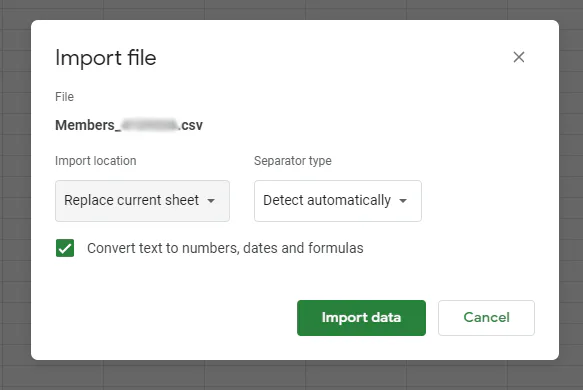
Leave the other fields as they are, click Import data and watch as the sheet is filled with a list of our beloved patrons.
3. Import poll data
Now we need to transfer the data about voting into the spreadsheet, for this we find the post with the voting in Patreon and export the data about the votes from it through the button "Download results".

The resulting CSV file named PollResponses_*.csv must be imported into the spreadsheet in the same way, this time into the "2. Import poll votes here" sheet.
All actions are similar to the previous step:
Open the sheet;
File -> Import;
Upload the file;
Select “Replace current sheet”;
Press “Import Data”;
Check that imported results shows correctly.
4. Results
Check the sheet "3. Settings", the tiers and the number of votes for each should be up to date.
On the "4. Results" tab, you can see a table with the following rows:
Votes - Basic votes, without taking into account tiers;
Votes bonus - The number of votes for the given choice, gained at the expense of benefits
Weighted - The total number of votes
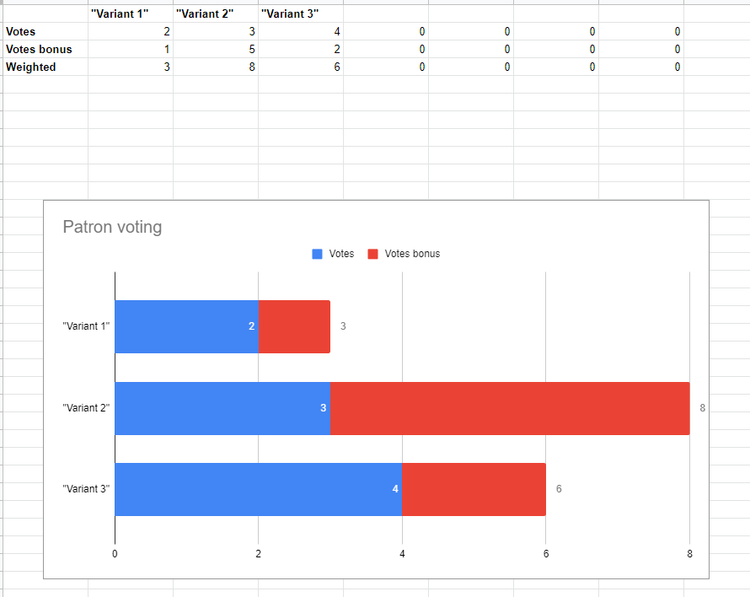
And a chart showing the distribution of votes for one option or another. It's quite an interesting and exciting situation, when a different option from the one that was the leader in the simple voting is getting ahead by virtue of the extra weight, isn't it?
When Manka Games hits 1000 patrons, we'll write a separate free program to recalculate the polls, so there will be fewer steps to configure/prepare the data. For now, this tool will do the trick. We hope it will come in handy for you as well. You can make any changes to your copies of the spreadsheet! If you notice inaccuracies, bugs, or have suggestions for improvement, feel free to contact us here in our Discord server!














0 comments