
Comments

CodeForge 2
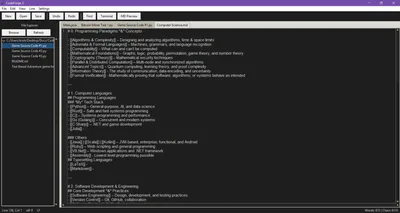
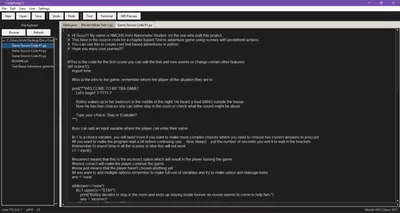
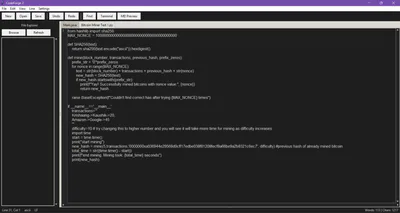
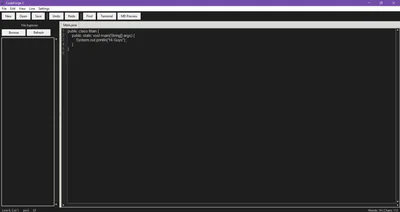
Welcome to the long awaited sequel for CodeForge! Now with modern features! Unlike the first editor which was written entirely in the "Scratch/Turbowarp" Development framework, this is completely made using python.
Lets look at some features!
Here's a comprehensive list of every feature in the CodeForge 2 text editor:
Core Editing Features
Text Manipulation
Insert text
Delete text
Copy text (Ctrl+C)
Cut text (Ctrl+X)
Paste text (Ctrl+V)
Multi-level undo (Ctrl+Z)
Multi-level redo (Ctrl+Y)
Selection Modes
Character selection
Word selection
Line selection
Text highlighting
Line Operations (Similar to CodeForge 1)
Duplicate line (Ctrl+D)
Delete line (Ctrl+Shift+K)
Move line up (Alt+Up)
Move line down (Alt+Down)
Join lines (Ctrl+J)
Navigation & View
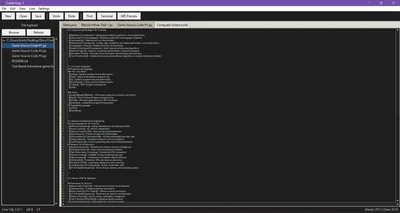
Line Numbers
Absolute line numbering
Auto-resizing width based on line count
Synchronized scrolling with text
Toggle on/off in settings
Dark themed (
#252526background,#858585text)
Zoom Controls
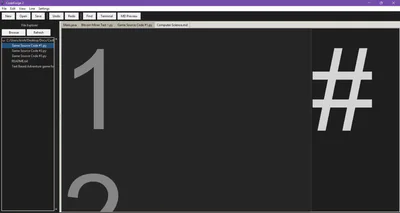
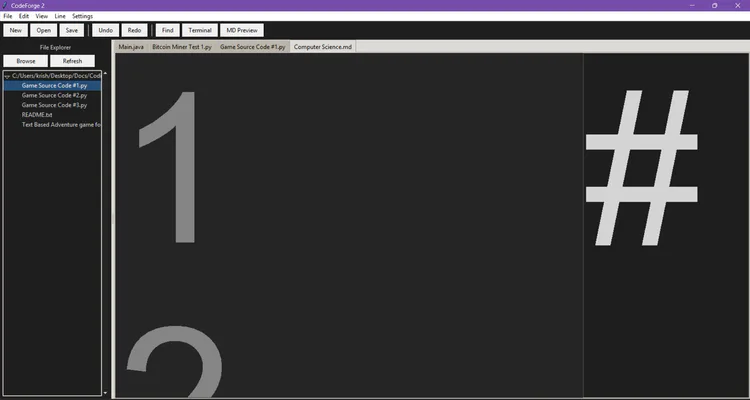
Zoom in (Ctrl++)
Zoom out (Ctrl+-)
Reset zoom (Ctrl+0)
Applies to all open tabs
UNLIMITED ZOOM IN!!!!!!!!!!!!!!!
Scrolling
Synchronized vertical scrolling (line numbers + text)
Independent horizontal scrolling
Dark themed scrollbars
Hover effect on scrollbars (blue highlight)
File Management
File Operations
New file (Ctrl+N)
Open file (Ctrl+O)
Save file (Ctrl+S)
Save as (Ctrl+Shift+S)
Multiple file format support (.txt, .py, .html, .md, etc.)
File Explorer
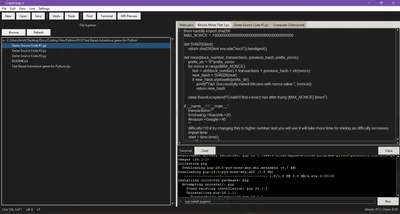
Tree-view file browser
Browse button to select folder
Refresh button to reload folder
Double-click to open files
Recursive folder navigation
Dark themed interface
Multiple File Tabs
Create unlimited tabs
Tab switching
Each tab maintains separate file state
Displays filename in tab title
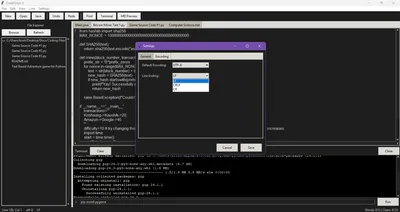
Encoding Support
Automatic encoding detection (using chardet)
UTF-8, ASCII, ISO-8859-1, Windows-1252
Encoding display in status bar
Encoding conversion
Line Ending Support
LF (Unix/Linux)
CRLF (Windows)
CR (Classic Mac)
Auto-detection on file load
Conversion on file save
Display in status bar
Auto-save (Optional)
Toggle in settings
5-minute interval (configurable)
Only saves files with existing paths
Runs in background
Search & Replace
Find Function
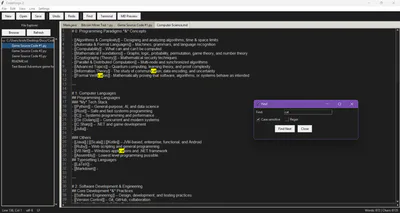
Find text dialog (Ctrl+F)
Case-sensitive search option
Regular expression (regex) support
Highlights all matches in yellow
Jumps to first match
Find next functionality
Replace Function
Replace dialog (Ctrl+H)
Replace all occurrences
Case-sensitive option
Works with plain text
Customization
Dark Theme (Only Mode)
Editor background:
#1e1e1eText color:
#d4d4d4Line numbers:
#252526/#858585Selection:
#264f78Cursor: White
Consistent across all UI elements
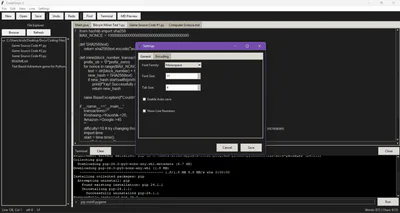
Font Customization
Font family selection (Consolas, Courier New, Monaco, Monospace)
Font size adjustment (6-72 points)
Applies to text editor and line numbers
Saved to configuration file
Tab Size
Configurable tab width (2-8 spaces)
Measured in spaces
Applied to all tabs
Custom Keybindings
Pre-configured shortcuts for all major functions
Standard text editor bindings
All shortcuts listed in menus
Settings Persistence
Configuration saved to
~/.text_editor_config.jsonAuto-loads on startup
Preserves: font, size, tab size, auto-save, line numbers
Code Features
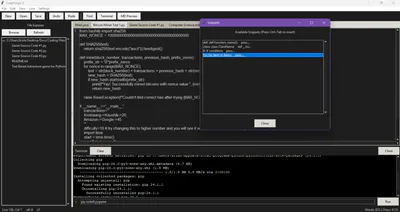
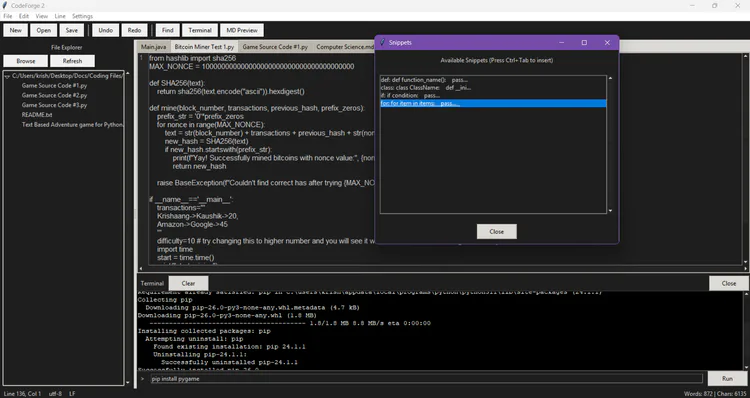
Code Snippets
Predefined snippets for common code patterns
def- Python function templateclass- Python class templateif- If statement templatefor- For loop templateInsert with Ctrl+Tab
View all snippets in dedicated dialog
Find result highlighting
Advanced Features
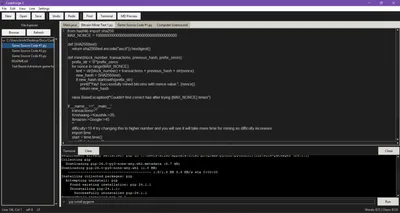
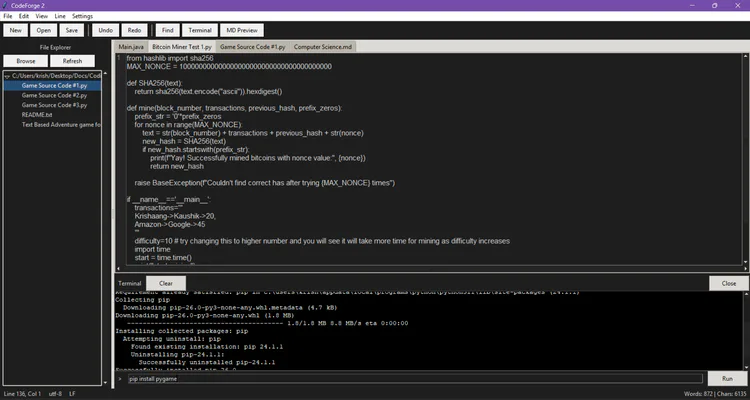
Integrated Terminal
Toggle terminal (button or click)
Command input field
Command execution with shell
Output display in black console-style text widget
Clear terminal function
Close terminal function
Command history in output
30-second timeout for commands
Threaded execution (non-blocking)
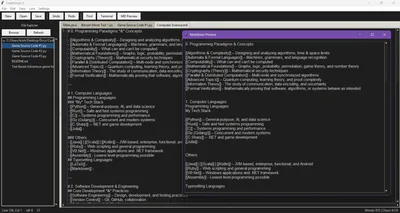
Markdown Preview
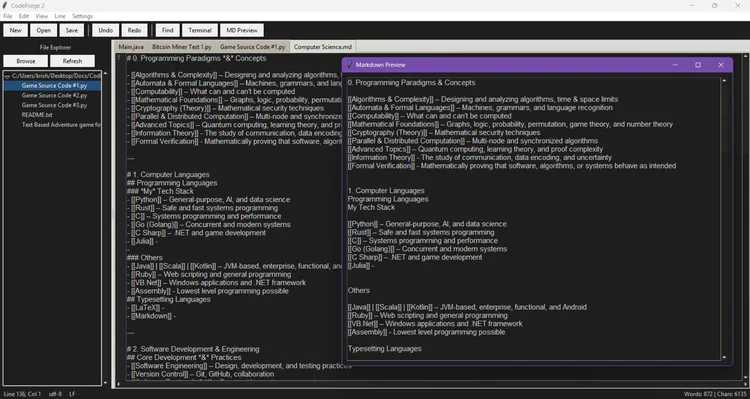
Preview button/menu (Ctrl+M)
Uses
markdownlibraryHTML conversion with extensions (extra, codehilite)
Opens in separate window
Read-only display
Dark themed preview window
Scrollable content
User Interface
Menu Bar
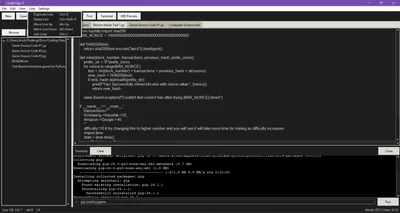
File menu (New, Open, Save, Save As, Exit)
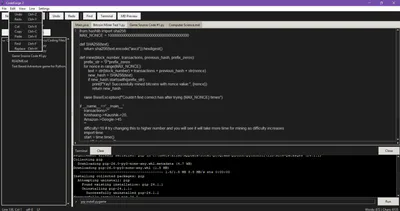
Edit menu (Undo, Redo, Cut, Copy, Paste, Find, Replace)
View menu (Markdown Preview, Zoom controls)
Line menu (All line operations)
Settings menu (Preferences, Snippets)
All with keyboard shortcuts displayed
Toolbar
Quick access buttons for common actions
Light mode buttons (
#f0f0f0)Separated by visual dividers
New, Open, Save, Undo, Redo, Find, Terminal, MD Preview
Status Bar
Current line and column position
File encoding (UTF-8, etc.)
Line ending type (LF, CRLF, CR)
Word count
Character count
Dark themed labels
Tab System with Close Buttons
Visual X button on each tab
Click to close individual tabs
Hover effect (red X on hover)
Prevents closing last tab (creates new one first)
Custom notebook implementation
Dialogs
Find dialog
Replace dialog
Settings dialog (tabbed: General, Encoding)
Snippets dialog
Technical Features
Configuration Management
Automatic save on changes
Default values fallback
Error handling for corrupt files
Error Handling
File operation errors with user messages
Regex error handling in find/replace
Terminal command timeout
Permission error handling in file explorer
Encoding fallback (UTF-8 with ignore errors)
Window Management
1200x700 default size
Resizable interface
PanedWindow for adjustable explorer width
Performance Features
Unlimited undo/redo stack
Efficient text widget usage
Threaded terminal command execution
Lazy loading in file explorer
#retro #other #codeforge #codeforge2 #nanometerstudios #nanometerhorizon #editor
Coding is like.... uh..... coding....