
JadeJohnson:
For the past month-now, all I've ever dreamt of being able to do, was to teach myself how to sing in the style of "Maybe", from the play, "Annie"!
I had just seen it, literally two days before I'd lost my voice! The day right before, I'd had play-practice, which I now can't-at-all-believe I nailed-so-well, provided my current predicament; and so I knew-not to sing songs from other performances that could throw-off my focus, but OOF! Right OR wrong, Do I regret NOT-singing Annie-now!
Anyway, now, I am totes stoked for the day when I finally wake up, and am able to even TALK-normally-aGain, much-more sing all the songs I've heard both during, AND SINCE, seeing Annie!
If there's any lesson to be learned from what I have been experiencing, it is the following:
"Never take any opportunity to sing your heart-out for granted! No matter how many people may not enjoy the sound or volume of your voice, you are lucky, if you do, to have one at all! You were made to take advantage of every life-fitting opportunity to utilise your singing-voice to bring joy to the world, even if some haters are jealous and can't understand what motivates you to keep going!"
That being said, if I ever do fully get my voice-back, I hereby promise, never to sleep on a single chance to use my Creator-given vocal-talents, ever, aGain!
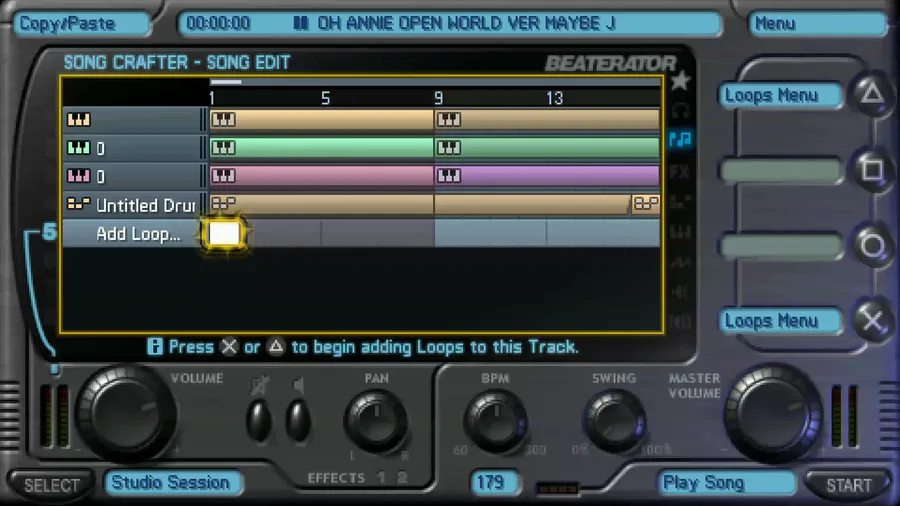
How To Get AI Vocals To Correctly Work On A Sony® PSP™ In Rockstar Games®'s Beaterator™:
Make an instrumental with a melodic guide on Beaterator for SunoAI to follow.
Upload your instrumental containing a lead-melodic guide (for example, the melody on hand-bells) to SunoAI.
Secondary-click your uploaded file once it appears in the library-list, and select "Cover" which spawns in the sub-menu to the right of "Create-slash-Remix".
In the cover-settings on the left, in the Lyrics-box, be sure to type in lyrics containing the EXACT SAME NUMBER of SYLLABLES as your MELODIC GUIDE, or the AI voice will spend too long on one line. It helps to intentionally misspell three-syllable words to have two of them when that's how you want them to be pronounced, (for example, "P-r-o-b-b-l-y [but without the hyphens {blasted spell-check}]", instead of "Probably", so that your melodic timing stays in tact.
In the style-box, type in the genre of music into which you wish for the AI to convert your original instrumental. I highly recommend, "Verbatim Bombastic Cinematic Orchestral".
Press "Create Song".
When it's done, listen to your creation, to make sure that the melodic timings were at least reasonably kept.
Download the MP3 of your song.
Use an AI Vocal Remover, such as Replay By Weights (highly recommended, best quality vocal-extractions), or VocalRemover.org, to extract the vocals from the instrumental.
Use either Replay (highly recommended, entirely offline, no credit-systems or payments [they DO have a Mac-port]), or the online Adobe Podcast Enhancer, to remove the echoes and-or reverberation from the vocals. Replay even lets you do this, and the next-step simultaneously!
Feed your cleaned-up vocal-file through an AI voice-bank converter.
Take your AI-converted vocals, and open them up in an Audio-editor, such as Audacity®.
Silence all the breaths, trim the audio to the true start and end of the main vocal itself, and, optionally, add a dynamics-compressor for that epic, late-night, studio effect!
Export your finalised audio as a .WAV-file, at Twenty-Two-Thousand-And-Fifty Hertz, in Monaural, at sixteen bits per sample. Beaterator has a maximum sample data length per ProJect of three minutes and thirty seconds at the lowest sample rate and channel count it supports, those being: twenty-two-thousand-and-fifty (22050) Hertz (Hz), and Monaural (Mono). Increasing either to fourty-four-thousand-and-one-hundred (44100) Hertz (Hz), to Stereophonic (Stereo), or to both; cuts your allowed sample space in half, and if both, then down to one quarter. Exporting at the lowest supported settings ensures that Beaterator can hold your lyrics, and instrumentals simultaneously, as long as your instrument-data remains compact-enough.
Find your exported file, and either cut-and-paste, or copy-and-paste, it to your PSP's MUSIC-folder, inside the sub-directory called, "BEATERATOR". If one does not-yet exist, create it, in all uppercase, then paste your audio inside of it.
Open Beaterator™, and browse to the ProJect into-which you wish to place your new vocals.
Create a new Drum-Crafter-loop.
Set Track 1's volume to the maximum, then press the Triangle-button, then the right-arrow twice, to find all your importable audio. If any sound is more than nine megabytes in size, or larger than the remaining space inside your current ProJect, it will not be selectable, and shall thusly appear dimmed-out.
If your file is selectable, pick it. Navigate to the best spot on the left-to-right axis of the current instrument-track into which you have just imported your vocals, and place a "Drum-Hit" right where the timing feels most-appropriate.
Adjust tempo, volumes, and effects; all as needed, then finally, save, export, enjoy, and share!
Tip: If you want your vocals to loop past the end of the song's repeating-region when applicable, you need to put a blank drum-crafter loop at the start of the repeating-region, and buffer it out as far as the tail of the previous hit needs to be extended, or it will cut off immediately upon cycling. If you found upon exporting or playback, that your vocals cut off after their respective Drum-Crafter-loop ended, it's simply because you need to buffer them out with blank Drum-Crafter-loops until the end of the track as well, especially for a looping-one.
And that's, how to go full-circle, from, the PSP version of Beaterator, to AI voice-creation, and back to your PSP Beaterator-ProJect-file, now actually incorporating AI into your final mix, even live, on the exact-same Two-Thousand-And-Three hardware!














0 comments