Comments
Micro-Tram Simulator
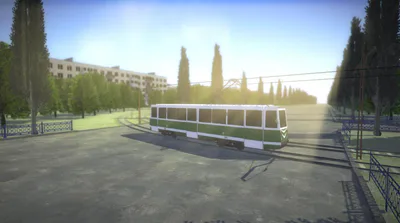
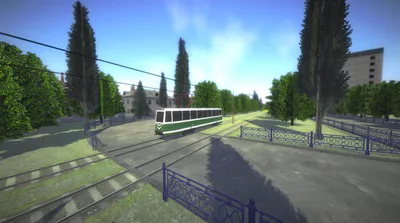
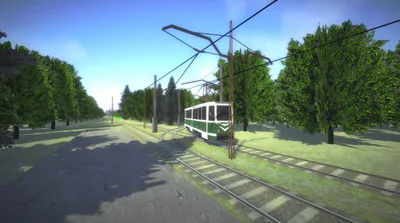
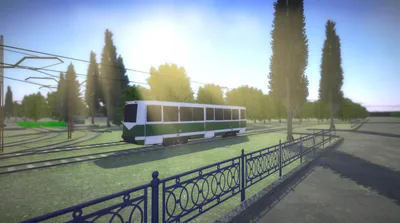
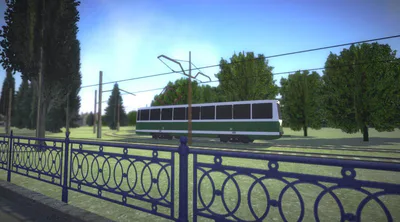
Micro-Tram Simulator : A minimalist tram simulator with arcade controls.
THE GAME IS STILL IN DEVELOPMENT AND IS ONLY IN OPEN TESTING.
Gameplay:
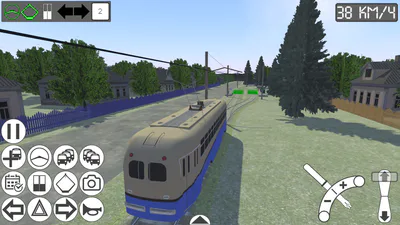
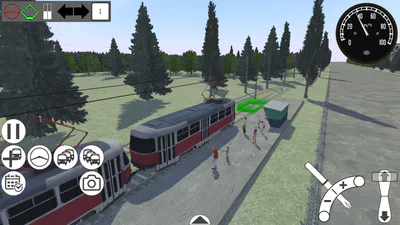
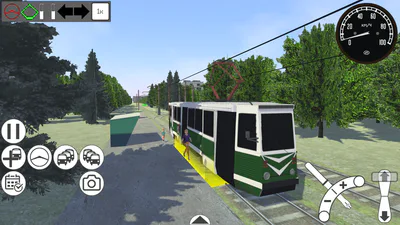
The game has very simple controls that are easy to get used to. You have several tram models to choose from. When you enter the map, all trams are automatically controlled; all you have to do is find the one you want and take control.
To speed up or slow down, turn the controller lever to the appropriate position.
Passage of arrows:
If the tram is on the route, you don't need to think about the switches, just drive along the route, and all the switches will switch automatically.
To change the direction of the arrow manually, you need to turn on the turn signal in the direction you want to turn (driving straight ahead also counts as a turn). However, this only works when you're not on a route.
Spawning and removing trams:
To spawn a new tram, press R (or the corresponding key on Android). In the tram spawner window that opens, you can select the tram you want and add it to the map by pressing the "Spawn" button. It will appear at the depot, and you'll only need to switch between trams until you find it.
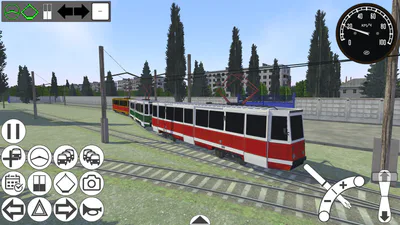
However, for some trams, in addition to a single train, a CME is also available. By default, this switch is set to "X1," meaning the tram will be created as a single unit, but the "X2" and "X3" settings are also available, allowing you to create a train with multiple cars. Each car in a CME train is a separate car, so you can switch to it and choose a paint job for it.
To delete a tram from the map, switch to the desired tram and click the "Delete" button in the same tram spawner window. If you're on the first CME at this point, it will be completely deleted, but if you're on the second or last, the entire train will be deleted except for the previous car. If there are no other trams on the map besides the CME, the first car will remain.
Route system:
To release the tram from its route, open the route menu by pressing the E key (or the corresponding button on Android). At the very top of this window, you'll see the "Release" button. When you press this button, the bot will release itself from the route and will no longer move on its own. It will remain stationary with its hazard lights on.
To set a tram route, use the same route menu window to select any route from the list (if available on the map). Then, click "Select," and the tram will immediately begin moving. A bot-controlled tram will always follow the route, no matter where it is; the switches will always point in the right direction.
Repaints:
You can change the current tram's paint job to any other (provided you have any installed). To do this, open the pause menu, select "Paint Jobs," and choose the desired paint job from the list. Then, click "Apply." The paint job will be applied immediately to the current tram.
To add repaints from the .mtrsrepaint file to Windows, enable the "Associate .mtrsrepaint files with Micro-Tram Simulator to automatically install repaints directly into the game" option in the game installer. This will create the necessary associations in the system and allow these files to be opened with the game, and the game will then install everything automatically. If you didn't enable this option during installation, you can open this file and, when prompted, specify "MTrS.exe" in the folder where you installed the game (by default, "C:\Games\Micro-Transport Project\MTrS\MTrS.exe").
To add recolors from the .mtrsrepaint file to Android (both on the Itch build and on Google Play), open the file in any file manager, select "MTrS" from the list of applications, and the game will install everything automatically.
Control:
W/S and up/down arrows – acceleration and braking;
X – reset the controller to zero position;
A/D and left/right arrows – switching the reverser;
Tab – go to the next tram;
LShift + Tab – go to the previous tram;
M – switching between manual and automatic control;
T – raise/lower pantograph;
Q – open/close doors;
H – sound signal;
1 – left turn signal;
2 – right turn signal;
3 – emergency alarm;
E – route menu;
R – spawner menu;
F1 – hide interface;
F2 – debug menu;
Insert - enable free camera;
Num 2/4/6/8/7/9 - move free camera.
Rotate the camera only by holding down the left or right mouse button (on all platforms except Android)
Also, all controls are duplicated for touch control on Android OS.
System requirements for Windows :
Minimum: CPU: 2 cores 2 GHz; RAM: 512 MB; Video card: DX11, 800 MHz, 256 MB
Recommended: CPU: 4 cores 2.2 GHz; RAM: 512 MB; Video card: DX11, 1200 MHz, 512 MB
Ultra: CPU: 4 cores 3 GHz; RAM: 512 MB; Video card: DX11, 1500 MHz or higher, 1.2 GB