
Comments

JadeIrectOrPAL™ — 25 Frames Per Second, 5000 Frame-Blocks, 125000 Total Frames, 1:23:20 Film-Length - Final Build Edition:
Please Note:
Once it starts, you're all good, but, please be warned: this application does-take about two-to-three minutes to load when opened. So, please do be sure to only press enter or double-click on it one time, or your machine could end-up in a PowerPoint boot-loop. Thank you so very much for your patience!

JadeIrectOr™ is the world's first legitimate stop-motion animation-software created entirely in PowerPoint. It runs entirely in Show-Mode, except for the final rendering ProCess, as well as audio management; which are the sole two parts that ever DO-require opening your ProJect in PowerPoint's Edit-mode.
How To Edit Your Film:
Frame-Block-Selection:
• Each editor-slide contains the same designated number of animation-frames that pertain to it. This set of frames on each slide, we have branded as a, "Frame-Block".
Next Frame-Block:
• To navigate to the next Frame-Block, click anywhere on the right quarter of the screen.
◘ Alternatively, you can hold down SHIFT as you press TAB, then press ENTER.
Synchronise Layers:
• Sometimes, whilst editing, the frames can become paused or get out of synchronisation. To fix this, use the Reset-Command, by simply clicking anywhere in the center-two quarters of the display's horizontality.
◘ Alternatively, when no frame is selected, you can "hold-down SHIFT as you press TAB twice", then press ENTER once.
First Frame-Block:
• There may be times when you wish to review or change features of your animation. To return to the first Frame-Block, simply click anywhere in the left quarter of the screen.
◘ Alternatively, you can "hold-down SHIFT as you press TAB thrice", then press ENTER once. Holding SHIFT whilst pressing TAB four or more times will see you cycle backwards through the frames, starting with Foreground Frame 25, labelled FrameO in our Pentavigesimal counting-system.
Frame Selection:
Standard Navigation:
• Use the TAB-key to select each of twenty-five frames per slide.
Reverse Navigation:
◘ You can hold down the SHIFT-key as you press TAB to go backwards. Remember that the first foreground-frame won't be accessible until you've held-down SHIFT and pressed TAB at least four times.
Frame-Management:
• Press ENTER to open the currently-selected frame.
Foreground-Layer:
• From the first-through--twenty-fiftht imes you press tab (occasionally first-through--twenty-sixth, due to a PowerPoint selection-glitch), you will be working in the background-layer.
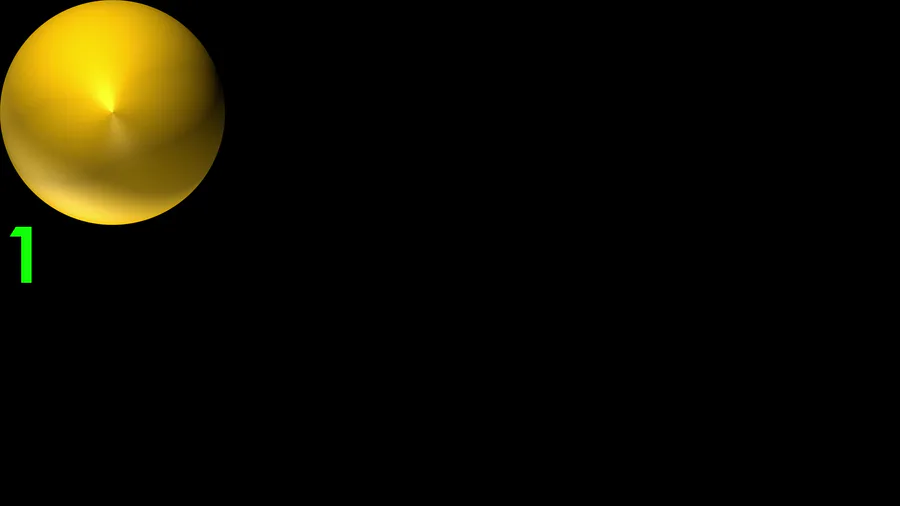
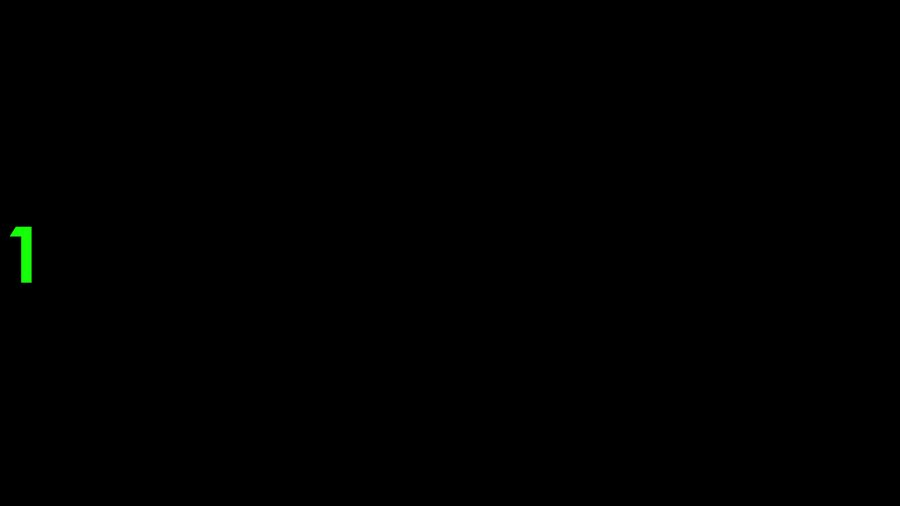
◘ This layer's frames are represented by a green number on the left side of the screen, which can be deleted by opening its frame, and pressing TAB, followed by DELETE.
Background-Layer:
• For the twenty-eighth--through--fifty-second times you press tab (occasionally twenty-ninth--through--fifty-third, due to the same PowerPoint selection-glitch [yes, we got the maths right, PowerPoint is, THAT, WEIRD with selection]), you will be working in the foreground-layer.
◘ This layer's frames are represented by a blue number on the right side of the screen, which can be deleted by opening its frame, and pressing TAB, followed by DELETE.
Starting And Stopping Individual Layers:
• You may have noticed that we never mentioned what happens if you press ENTER after the twenty-sixth and twenty-seventh times of pressing TAB (or the twenty-seventh and twenty-eighth whenever that annoying PowerPoint selection-glitch occurs). Don't worry; that is not a cursed action.
• pressing TAB twenty-six (or twenty-seven) times, then pressing SPACE, toggles the playback of the background-layer.
◘ So, naturally, pressing TAB twenty-seven (or twenty-eight) times, then pressing SPACE, toggles the playback of the foreground-layer.
Proper Functionality:
• Whenever you press enter to open a frame, provided your Microsoft Trust Center restrictions are all disabled, a fullscale PowerPoint editor-window will appear.
◘ If you are on Windows 10 or above, you can hold-down the Windows Logo-key as you press the Up-Arrow-key to maximise it if it appears miniscule or loads somewhere off-screen. Otherwise, click the Maximise-icon (the large square next to the ×-(multiplication-symbol)-shaped Close-Button.
🔠 If you are a keyboard user, you can also maximise any non-full-screen, non-proprietary non-dialogue-box window by holding down the ALT-key as you press the SPACE-bar (provided the same Microsoft Copilot-shortcut is disabled), and then pressing the letter x. This method has been tested by us to work with operating-systems as retro as Windows XP!
Creating Frames:
Once the editor-window appears, you're free to use your imagination in any LAW-ABIDING way you see fit.
Stop-Motion:
Utilise a camera to take photos, and then stitch them together to animate them at up to a full standard PAL-Region Twenty-Five frames-per-second, to watch your scene come to life!
Hand-Drawn Animation:
PowerPoint comes with a robust set of drawing tools, gradients, transparency-effects, lighting-features, 3D-rotation and design-capabilities, et-cetera. Feel free to experiment with them all to make something truly unique!
Live-Action Update:
You can now, with this final build, use an app like "Open Camera" (available from the Google Play Store for free and open source), to take hundreds of photos in quick succession, then import each frame into JadeIrectOr™ to build your film entirely out of real-world footage! Trust us, it'll look so magical with Open Camera's Incandescent White-Balance-preset!
Please enjoy, we can't wait to discover what you'll make with this tool, and as always,
"Happy Jading!™"
#Film #Engine #FilmEngine #Maker #FilmMaker #Movie #MovieMaker #MovieEditor