


Comments

No comments yet.
Free
Demo

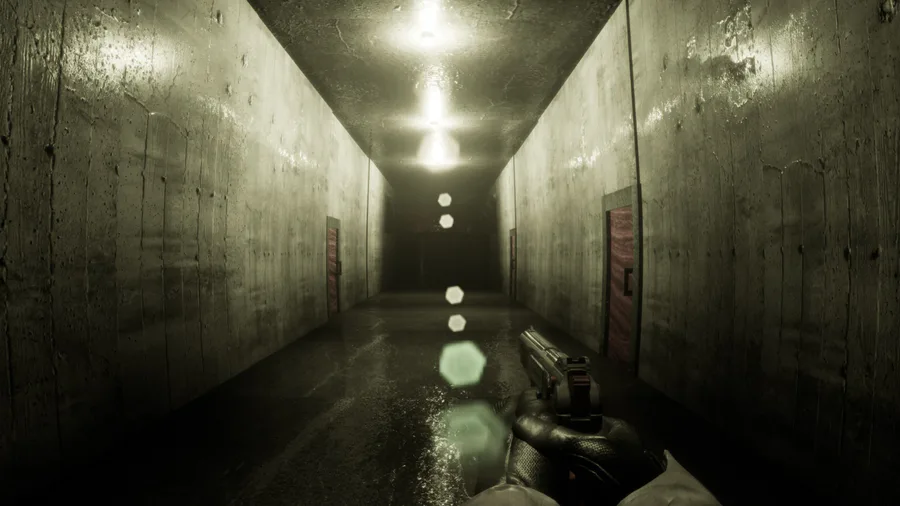
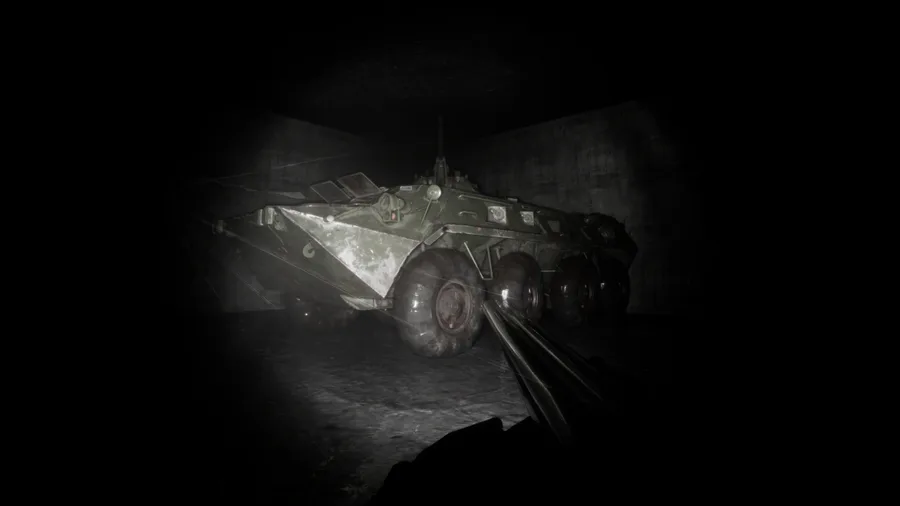
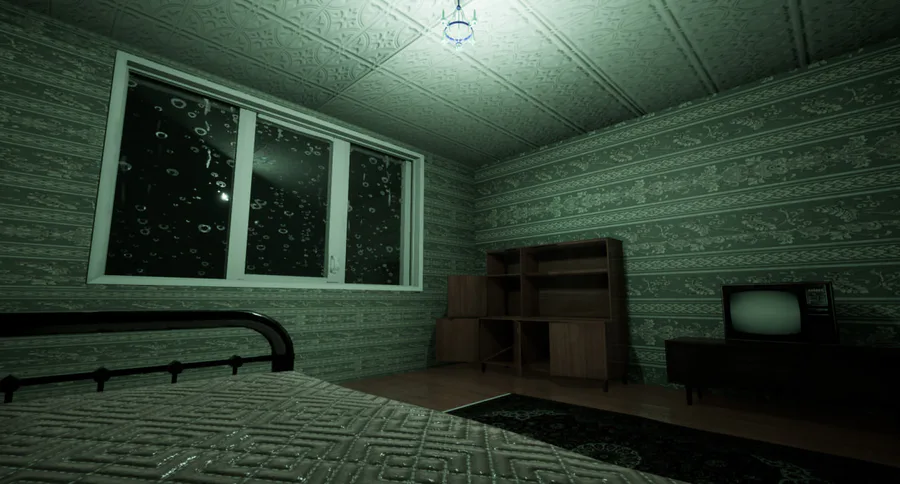
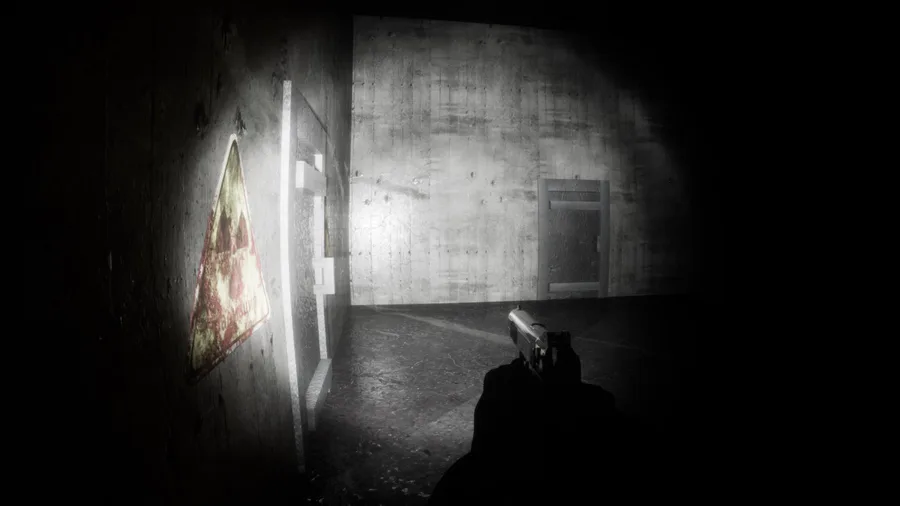
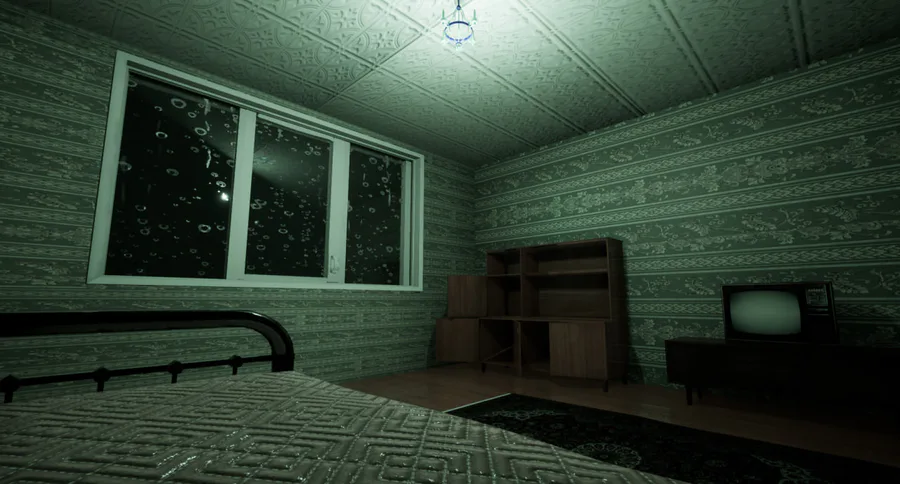
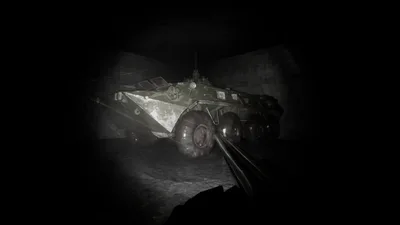
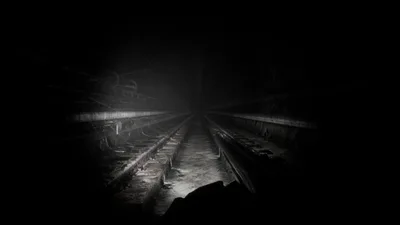
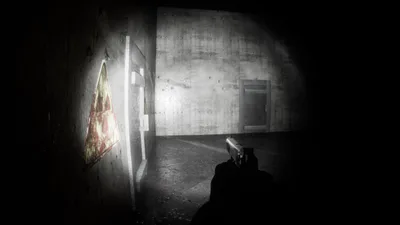
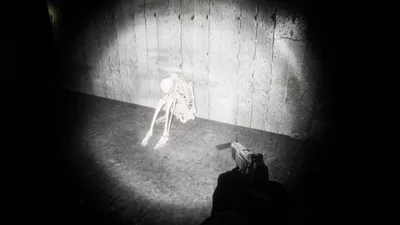
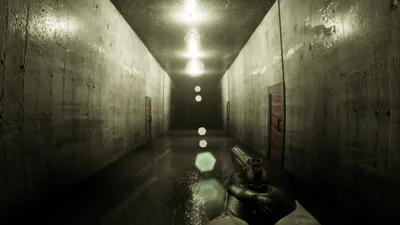
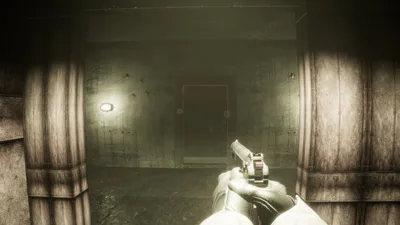
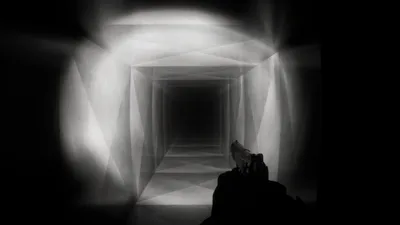
You are an inspector for a mysterious agency who investigates old buildings. During an inspection of an industrial complex, you fall into a secret bunker that is not listed in the documents. The exits are blocked, and there are signs of a hasty escape, such as scattered papers, broken equipment, and signs of a struggle.
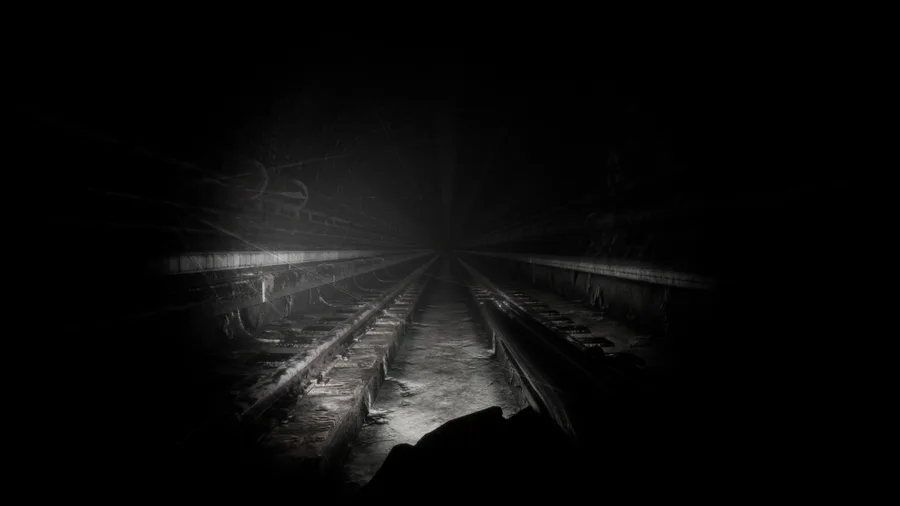
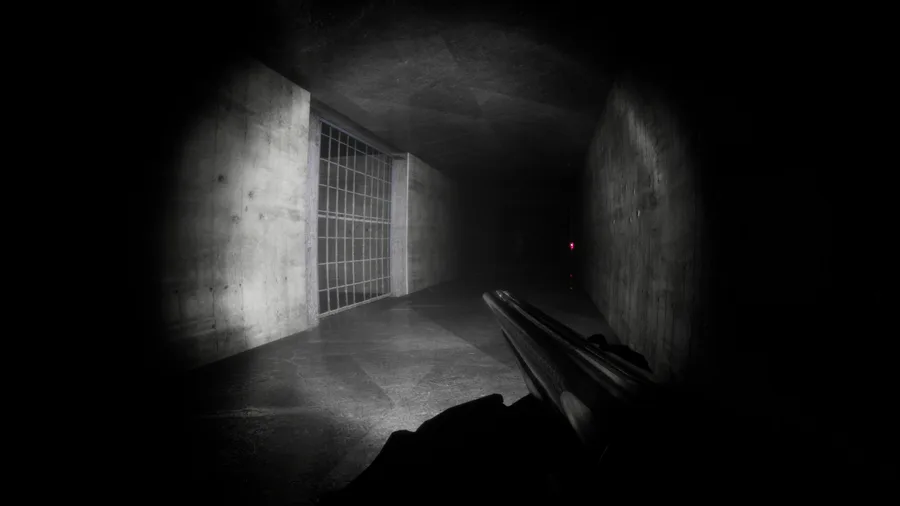
You decide to stay and uncover the secrets of the bunker. What happened here? Why was it hidden? You must explore the underground labyrinths, find the classified documents, and piece together the terrifying facts.
But be careful: there's something in the dark. It's watching. It's waiting.
SYSTEM REQUIREMENTS:
Minimum System Requirements
OS: Windows 7 / 10 (64-bit)
Processor: Intel Core i3-2100 or equivalent
Memory: 4 GB RAM
Graphics: Integrated graphics (Intel HD 4000) or equivalent
DirectX: Version 11
Storage: 4 GB available space
Recommended System Requirements
OS: Windows 10 / 11 (64-bit)
Processor: Intel Core i5-7400 or equivalent
Memory: 8 GB RAM
Graphics: NVIDIA GeForce GTX 750 Ti / equivalent
DirectX: Version 11
Storage: 4 GB available space
HOW INSTALL GAME:
Step 0: Creating Your Account
Before you can log in, you need a digital "key" — your .mpla account file.
Launch the MPLauncher and click the "CREATE NEW ACCOUNT" button on the main screen.
In the creator tool, enter your Login, Password, and Phone Number.
Crucial Step: When saving your account, save the
.mplafile directly into the MPLauncher folder. This ensures the launcher can always find your profile.Keep this file safe! It contains your encrypted credentials.
Step 1: Authorization & Auto-Login
On the launcher's home screen, click "OPEN .MPLA ACCOUNT".
Select your
.mplafile from the launcher folder.Enter the credentials you created: Login, Password, and the last 4 digits of your phone number.
Once logged in, the launcher creates a
session.datfile.Tip: As long as this file exists and your
.mplastays in the same place, the launcher will automatically log you in next time you start it!
Step 2: Importing Games (.MPGP)
To add games to your library, you need packages in the .mpgp format.
In the left sidebar, click the "IMPORT .MPGP" button.
Select the game package you wish to install.
The launcher will automatically create an
MP_Gamesfolder and extract the game files there. The game will immediately appear in your LIBRARY.
Step 3: Launching & Playtime Tracking
Find your game in the library and click the white "PLAY" button.
The button will change to "RUNNING...", and other functions (like Import or Delete) will be locked to prevent data corruption.
Playtime Sync: Play for as long as you like. Once you close the game, the launcher "wakes up," calculates your session time in seconds, and adds it to your total PLAYED counter.
Your updated playtime is saved directly back into your
.mplafile.
Step 4: Library Management & Cleanup
Complete Deletion: If you want to remove a game, click "DELETE". Unlike other launchers, MPLauncher will not only remove the entry from your list but will also permanently wipe the game folder from your disk to save space.
Logging Out: If you need to switch accounts, click "LOGOUT". This deletes your session file, and the launcher will ask for your
.mplafile and password again on the next launch.


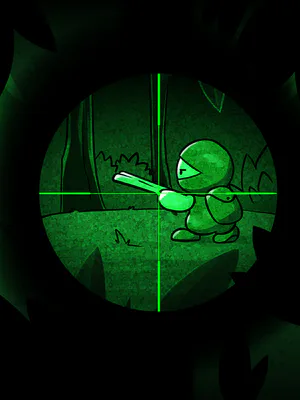
Intense Cartoon Violence
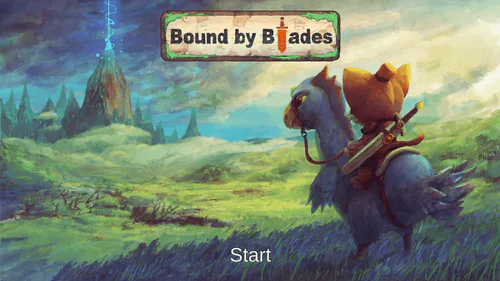
Intense Fantasy Violence
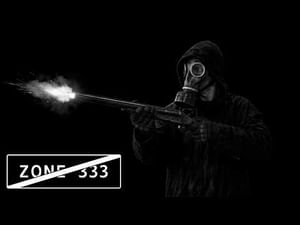
Intense Realistic Violence
Blood and Gore